
Complete Implementation & Optimization Guide for OpenCode and Ollama
OpenCode is an open-source AI coding agent that runs in your terminal and connects to local models through Ollama, keeping your code off third-party servers and eliminating per-token API costs. Most tutorials on this setup are practically useless. They show you a “hello world” example, generate one Python snippet, and call it a day. That’s not a workflow. The second you try to use this for actual production work, you’ll hit a wall of VRAM exhaustion and connection timeouts.
Running local models on my inference server since LLM weights first became practical in 2023 has taught me one thing: the gap between a “quick setup” and a stable environment is where most people give up. The first time I tried this for a real task, I was debugging a regression in an inference pipeline at 11pm. The model was too big for my VRAM, Ollama dumped the overflow to system RAM, and the session died mid-context when my machine ran out of memory. Forty-five minutes to rebuild the working context from scratch. OpenCode is useful because it separates the agent logic from the model provider. Pair it with Ollama, and you’ve basically built your own private Copilot.
Here’s how to set up this stack without wasting your entire afternoon on configuration errors.
The Local Advantage: Why Pair OpenCode with Ollama?
First, you kill “token anxiety.” Cloud APIs charge you for every single iterative loop an agent takes to squash a bug. That’s a tax on experimentation. With Ollama, your output tokens cost zero. You can let an agent loop through a massive refactor without checking your credit card every ten minutes.
Then there’s privacy, which is actually the bigger deal. If you’re working on proprietary code, sending entire files to a remote server is a non-starter. Localhost means your code stays put. The intelligence is local, the data is local, and you’ve removed the risk.
Latency is the final piece. Cloud APIs are fast, sure, but network jitter and rate limits always get in the way. If you’ve got a high-end GPU, local generation often beats API speeds. You’re pulling directly from your own VRAM, so you cut out the round-trip to some distant data center. I learned why this matters the hard way about six months before I committed to running everything locally. I was chasing a latency regression in a driver module, had a clear line of reasoning going, and the API returned a 429. The session was gone, the context was gone, and the API didn’t recover for another twelve minutes. Local models don’t have 429s.
Strategic Model Selection for OpenCode
Stop assuming every model is “agent-ready.” Most aren’t. Predicting the next token is easy, but handling tool use and structured outputs is where things actually break. If a model can’t stick to a strict JSON schema for tool calling, it’ll just hallucinate and crash your workflow.
Qwen3.6:27b: The Current Daily Driver
Qwen3.6 dropped in April 2026 and it’s now the first model I reach for. The qwen3.6:27b dense model scores 77.2% on SWE-bench Verified, within 4 points of Claude Opus 4.6, while running on a single consumer GPU with a 256K token context window. Pull it with ollama pull qwen3.6:27b. It’s 17GB on disk and needs around 20GB of RAM to run comfortably. If you’re on NVIDIA, qwen3.6:27b-coding-nvfp4 (20GB) is the coding-tuned quantized variant worth trying; on Apple Silicon, qwen3.6:27b-coding-mxfp8 (31GB) is the MLX equivalent but needs a larger unified memory configuration. Both ship under Apache 2.0.
The qwen3.6:35b-a3b is the Mixture of Experts variant. It loads all 35B parameters into memory (more than the 27B), so it actually needs more RAM, not less. What MoE buys you is faster inference per token once loaded, since only 3B parameters activate per forward pass. Reach for it if you have 24GB+ RAM and want higher overall capacity.
I ran into this tradeoff exactly once. Had a cross-file refactor involving eight files: a function signature change that cascaded through three modules. The smaller model kept hallucinating the old function name in new files it hadn’t seen yet. Switching to the 27B model, re-feeding the context, resolved the full refactor in one pass without hallucinating anything.
Qwen3:8b: The Lightweight Option
If you’re on a machine with 8GB of RAM, qwen3:8b is your entry point. At roughly 5GB it’s fast to pull and swap, and it supports the 64k context window OpenCode needs. It handles most day-to-day tasks (explaining code, writing tests, small refactors) without issue. Complex multi-file architectural work is where it starts to slip.
Gemma 4: Best for Lightweight Use
Google released Gemma 4 in April 2026 and it’s now the right choice when you’re on limited hardware. The gemma4:e2b variant runs at 7.2GB, fits comfortably on an 8GB machine, and was specifically designed for efficient local execution on laptops. It has a 128K context window and handles simple refactoring, unit tests, and code explanation without issue. It’s not going to beat qwen3.6:27b on complex multi-file logic, but you don’t need a 27B model to find a missing semicolon. If you have 20GB of RAM, gemma4:31b is also worth pulling as an alternative daily driver. It’s what I use in my own local inference setup.
Model Quick Reference
| Model | Disk | Min RAM | Context | Best for |
|---|---|---|---|---|
qwen3.6:27b | 17GB | 20GB | 256K | Daily driver, complex multi-file refactors |
gemma4:31b | 20GB | 20GB | 128K | Alternative daily driver, Apple Silicon |
gemma4:e2b | 7.2GB | 8GB | 128K | 8GB machines, laptop use |
qwen3:8b | 5GB | 8GB | 64K | Entry point, quick tasks |
Hardware Configuration and Resource Allocation
Stop ignoring VRAM. It’s the most common mistake I see. If you try to load a model that’s too big, Ollama dumps the overflow into your system RAM. Your performance will crater. I tried loading qwen3.6:27b on a machine with 16GB of system RAM but only 8GB of VRAM. Ollama loaded what it could into VRAM and spilled the rest to system RAM. Token generation dropped from roughly 35 tokens per second to 4. Useless for interactive work.
VRAM and RAM Requirements by Model Size
Match your model to your hardware or don’t bother. The VRAM math is straightforward once you know it: gemma4:e2b (7.2GB) and qwen3:8b (5GB) fit on 8GB machines. qwen3.6:27b and gemma4:31b both need around 20GB. You also can’t look at model size in a vacuum, because Docker and heavy IDEs eat memory too. Account for that overhead before you start.
Ollama automatically detects your CUDA installation and uses all available GPU layers by default. To force all layers into VRAM with zero CPU fallback, set OLLAMA_NUM_GPU=99. Ollama will use as many layers as your VRAM allows. After loading a model, run ollama ps to see exactly how many layers are in VRAM versus RAM. If it shows CPU layers, you’re in the slow path.
Optimizing for Apple Silicon (M-Series)
Apple’s unified memory is a cheat code. Since the GPU shares system RAM, M1 through M4 chips handle larger models than a standard laptop with a discrete GPU. There’s no VRAM overflow. The model either fits in unified memory or it doesn’t. I’ve found this makes expanding the context window way smoother, and the M4 Max in particular handles 30B+ models at speeds that would require a dedicated workstation GPU on any other platform.
Configuring NVIDIA GPU Acceleration
NVIDIA is still the gold standard for raw token throughput. Token generation speed spikes when the model stays entirely in VRAM. Keep your drivers updated and make sure Ollama actually sees your CUDA cores. Run ollama run qwen3:8b "hello" and watch nvidia-smi to confirm GPU utilization is nonzero.
Beyond Quick Start: Advanced Implementation
ollama launch is fine for a quick demo. For a real workflow, you need actual control.
Managing the 64k Token Context Window
Don’t skimp on the context window. OpenCode suggests 64k tokens for a reason. Coding is context-heavy. If you set it too low, the agent loses the thread the moment you feed it a few large files. Then it starts suggesting “fixes” that break code it’s already forgotten.
I set the context window too low on a config I was testing. Was tracking down a race condition across four files. The agent lost the first two files mid-session, then suggested a fix that introduced the exact bug I was trying to remove. Found the issue the next morning in 20 minutes once I had a proper 64k window.
Configuring via ollama launch vs. Manual JSON
I burned an afternoon on this when I first set up the stack. Environment variables felt cleaner in principle, but every new shell session meant re-exporting them. Switched to the JSON file after the third time I forgot to re-source my config.
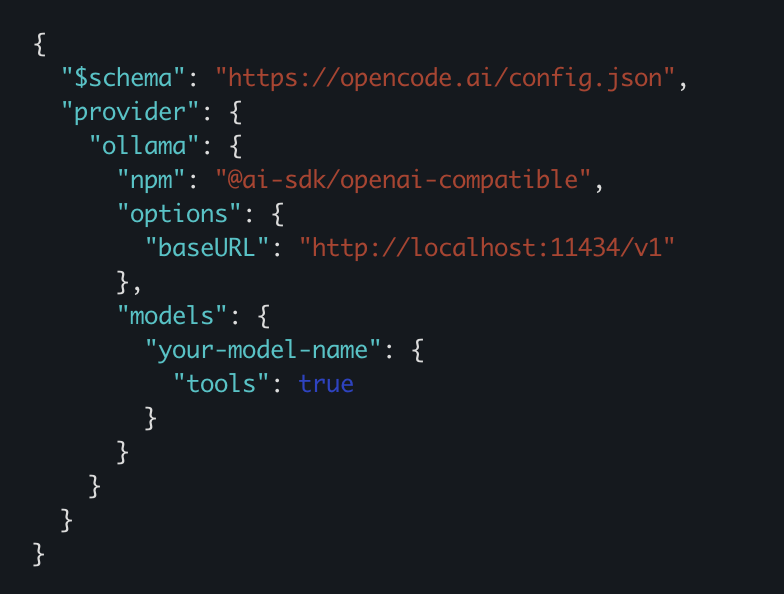
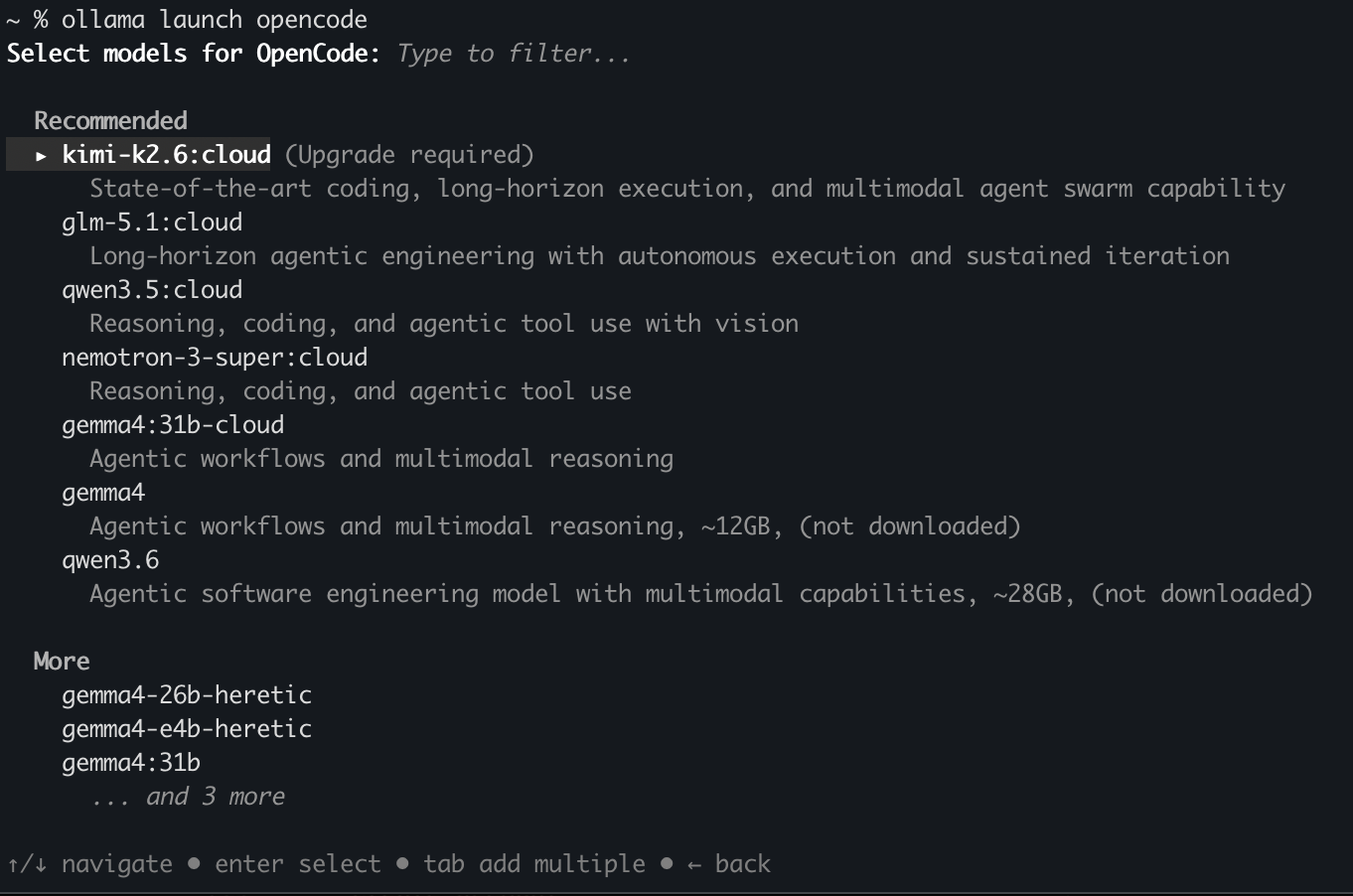
You can start with ollama launch opencode. It’s easy because it handles the setup via the OPENCODE_CONFIG_CONTENT environment variable. But environment variables don’t survive restarts cleanly. If you want a setup that persists, edit ~/.config/opencode/opencode.json directly. Run ollama launch opencode --config to open it for editing. Here’s what a minimal Ollama configuration looks like:
{
  "$schema": "https://opencode.ai/config.json",
  "provider": {
    "ollama": {
      "npm": "@ai-sdk/openai-compatible",
      "name": "Ollama (local)",
      "options": {
        "baseURL": "http://localhost:11434/v1"
      },
      "models": {
        "qwen3.6:27b": {
          "name": "qwen3.6:27b"
        },
        "qwen3:8b": {
          "name": "qwen3:8b"
        }
      }
    }
  }
}
This file deep-merges with anything set via environment variables, so you can still override on the fly when needed.
Using Environment Variables for Custom Endpoints
Localhost isn’t always the answer. If you’ve moved Ollama to a separate box or a container, you have to tell OpenCode where to look. Set OPENCODE_MODEL_PROVIDER="ollama", OPENCODE_BASE_URL="http://localhost:11434/v1", and OPENCODE_MODEL_NAME="qwen3.6:27b" to point the tool at the right place. For a remote Ollama server, swap localhost for the actual IP.
Troubleshooting Connection and Integration Errors
Most of the time, an “Unable to connect” message just means you’ve got a networking or URL mismatch. It’s rarely anything more complex than that.
Resolving “Unable to Connect” API Errors
First, look at your Base URL. People constantly forget the /v1 suffix. OpenCode needs an OpenAI-compatible endpoint, which Ollama hosts at http://localhost:11434/v1. If you’re on Linux or behind a proxy, check your firewall. It’s usually blocking the port.
I ran into this on a Linux box where Ollama was running in Docker. The default Docker network bridge assigned it a different IP than localhost. The connection check with opencode health --check-model failed instantly, which pointed me straight to the issue. Took about 30 seconds to fix once I knew where to look. It was the actual container IP, not 127.0.0.1.
Verifying the Local Endpoint with opencode health
Stop guessing why the connection is dead. Just use the health check. Running opencode health --check-model tells you if OpenCode can actually see the model. If it fails, the issue is your Ollama service or the network path, not the agent logic.
Handling Model Pull Failures and Timeouts
Big models like Qwen3:8b (5GB) will timeout if your connection is spotty. Don’t let the app hang. Just pull the model manually through the Ollama CLI before you even launch OpenCode. It’s faster and you can actually see the progress bar.
Optimizing Response Speed and Agent Performance
Once you’re up and running, the only thing that matters is speed. If the agent doesn’t feel instantaneous, it’s a bottleneck.
Decoupling Agent Logic from the Intelligence Provider
OpenCode separates the “brain” (the LLM) from the “hands” (the agent logic). It’s a clean split. This lets you swap models on the fly without rewriting your orchestration. I usually start with qwen3:8b to map the problem space, trace the logic, and understand what needs changing. Then I switch to qwen3.6:27b for the actual implementation. Last week it saved about two hours on a refactor I was convinced would need manual review. The small model is cheaper on context, the large model is better at execution. Use both.
Improving Tool Use and Structured Output
Local models are often finicky with tool use. If your agent keeps failing terminal commands, the model is probably choking on the structured output. Use “Instruct” variants. Period. They’re tuned for formatting, and without that, your agent is just guessing. For coding tasks, keep temperature at 0.1 to 0.2. High temperature is where tool-use failures come from. The model starts deviating from the expected JSON schema for function calls. Set this per-model in opencode.json under the model options.
Benchmarking Local Token Generation
Stop obsessing over tokens per second to decide if a model is “smart enough.” Speed is a vanity metric if the output is garbage. Throw a real multi-step task at it instead. Tell it to find every instance of a deprecated function, replace them with the new API, and update the imports. Fast text is useless if the logic is broken. If it fails the task, it’s the wrong model.
FAQ
Coding needs project awareness. If the window is too small, the agent forgets the file you just edited. 64k lets you keep multiple files and the chat history in memory so the AI doesn't lose the plot. I had a 16k context set on a five-file project once. The agent was rewriting a utility module and suggested a helper function that already existed in a file it had dropped from context. Same name, slightly different signature. If I'd applied it without checking, I'd have introduced a silent override bug.
Sure, but don't expect miracles. gemma4:e2b (7.2GB) is the best option for 8GB machines, designed specifically for that constraint. You'll still need to kill your browser and other memory hogs first or your system will crawl.
Either use the model selection menu in ollama launch or open ~/.config/opencode/opencode.json and swap the model name under the provider block.
One is a shortcut. ollama launch handles the environment variables and setup for you. If you go the manual route, you install OpenCode via curl -fsSL https://opencode.ai/install | bash and manage your config file directly.
It's almost always a wrong Base URL. The correct endpoint ends with /v1, so it's localhost:11434/v1 not just localhost:11434. If it still fails, run opencode health --check-model to find out where it's breaking. On Linux or Docker setups, check that port 11434 is accessible from wherever OpenCode is running.
qwen3.6:27b is the best accessible option right now: 17GB on disk, 77.2% on SWE-bench Verified, runs on a single consumer GPU. For machines with only 8GB of RAM, qwen3:8b is the entry point and handles most tasks well.