
Local LLM inference means running a large language model entirely on your own hardware, no API calls, no data leaving your machine, no per-token bill at the end of the month. Most “how-to” guides for local LLMs treat VRAM like a suggestion. They aren’t. Usually, these guides just tell you to download a model and pray. The first time I set up llama.cpp on my home server, I followed a tutorial that said to just download the model and run it with default context settings. The model loaded fine, the first few responses were fast. By the tenth prompt, I was at three tokens per second on hardware that should have been doing forty. I spent an afternoon assuming it was a GPU driver issue. It was the KV cache. The guide had never mentioned it once. I’ve wasted three days chasing “mysterious” slowdowns in the past, only to realize the system was swapping to disk because I ignored the KV cache.
Stop searching for the “best” model. That’s a waste of time. Local LLM inference is just a memory equation. If your weights and context window exceed your VRAM, you’re dead in the water; you’ll either hit an OOM error or offload to system RAM, which kills your tokens-per-second.
The math isn’t complicated. Just treat your GPU as a fixed container. Your job is to pick a quantization level and model size that actually fits, leaving enough headroom for the model to actually function.
Key Takeaways
Local LLM inference is a memory budgeting problem before it is anything else, model weights, KV cache, and runtime overhead must fit within your available VRAM or unified memory, or performance collapses. Quantization, specifically Q4_K_M, is not a quality compromise; it is how you run serious models on real hardware, and for most tasks the quality difference from FP16 is negligible. Unified memory hardware. Mac Studio M4 Max, AMD AI Max+ systems, has changed the consumer inference landscape by eliminating the traditional VRAM ceiling, letting 30B models run cleanly on a single compact machine. The break-even point against cloud API costs is typically three to six months for developers making 200 or more requests per day, after which local compute is effectively free. Ollama handles model management, quantization selection, and GPU offloading automatically, which is why it has become the default starting point for anyone setting up local inference.
The VRAM Calculation Framework: Predicting Model Fit
Don’t trust Hugging Face file sizes. They’re misleading. Figuring out if a model fits on your hardware is basic math, but you have to account for the variables that marketing materials conveniently leave out.
Weight Calculation Formulas
First, you’ve got the weights. This is your static cost. The math is simple: multiply the parameters in billions by the bits per weight, then divide by 8 to get GB.
For a 7B model running at FP16, it’s $7 \times (16 / 8)$, which is 14 GB. Drop that same model to 4-bit precision and the requirement plummets to $7 \times (4 / 8)$, or 3.5 GB.
Scale this to a 70B model and you’re looking at an abyss. An FP16 70B model needs 140 GB of VRAM. Most professional workstations can’t touch that. This is why quantization isn’t just a “nice-to-have” optimization, it’s a hard requirement unless you’re running a dedicated data center.
def vram_estimate_gb(params_b: float, bits: int, ctx_k: int = 4, overhead: float = 1.2) -> float:
    weights_gb = params_b * (bits / 8)
    kv_cache_gb = ctx_k * 0.3  # ~0.3 GB per 1k tokens for 7B-class models
    return (weights_gb + kv_cache_gb) * overhead

print(f"7B INT4,  4k ctx: {vram_estimate_gb(7,  4,  4):.1f} GB")   # 5.6 GB
print(f"7B FP16,  4k ctx: {vram_estimate_gb(7,  16, 4):.1f} GB")   # 18.2 GB
print(f"70B INT4, 8k ctx: {vram_estimate_gb(70, 4,  8):.1f} GB")   # 44.9 GB
The KV Cache and Context Memory
Weights are just the entry fee. The KV cache is where things get expensive. This cache stores attention history so the model doesn’t have to recompute every single previous token in the conversation.
Think of the KV cache as a hidden multiplier. It scales linearly with your context length and batch size. This is usually where setups crash. You might load a model that takes up 12 GB of your 16 GB VRAM and think you’ve got a comfortable margin. You don’t. As the conversation grows, the KV cache expands.
For many modern models, an 8k context window eats several GB of VRAM. If you push into 64k or 128k context, the cache becomes the dominant memory consumer, easily dwarfing the actual model weights. I ran into this with a 70B model at Q4_K_M on a 48GB setup. Loaded perfectly. The first dozen prompts were fast. Then I pasted in a large codebase chunk for a refactor review, the kind of task where local inference actually earns its keep. The process hit the VRAM ceiling as the KV cache ballooned and started spilling into system RAM. Generation dropped to under two tokens per second and eventually the Ollama server OOM-killed the request. The model hadn’t failed; the context budget had.
Accounting for Runtime Overhead
Don’t even think about allocating all your VRAM to the model and cache. Your operating system, display drivers, and the inference engine itself need breathing room.
I use a “Safe Rule”: multiply your total estimate by 1.2. That 20% buffer covers CUDA workspace buffers, FlashAttention overhead, and memory fragmentation. If your math says you need 14 GB, you actually need 17 GB to keep things stable. If you hit the ceiling, the driver will try to offload tensors to system RAM. That’s where performance dies.
Quantization Levels and the Performance Trade-off
Quantization is just lossy compression for neural networks. You’re slashing the precision of the model’s weights to cram a massive model onto consumer hardware without turning it into a brick.
Precision Tiers (FP16 to 4-bit)
Moving from FP16 down to 4-bit is what makes local inference actually viable on consumer hardware. The math is simple: FP16 takes 2 bytes per parameter, INT8 takes 1, and 4-bit hits roughly 0.5.
Early on I tried to run a Llama 2 70B at BF16 to preserve full quality. I was doing inference comparisons for work and didn’t want precision as a variable. The model binary started loading and I watched htop as VRAM climbed past 100GB and kept going. The process got killed by the OS at around 130GB allocated. The system didn’t crash, but the job was gone. Switched to Q4_K_M, loaded in under two minutes, quality was indistinguishable for the task.
VRAM savings are massive here, but the quality hit is usually trivial. Dropping from FP16 to INT8 barely touches coherence. Sure, you’ll see a slight bump in perplexity once you hit 4-bit, but for 90% of what you’re actually doing, it’s a trade-off you make every single time to get a 4x reduction in memory footprint.
The Q4_K_M “Sweet Spot”
Forget the jargon. Q4_K_M is the practical standard. It uses about 4.5 effective bits, which keeps the model smart enough to be useful while remaining small enough to fit on a single high-end consumer GPU.
Marketing materials love to claim that “quantization preserves all intelligence.” That’s a lie. You lose something. But that loss is far less painful than the alternative: running a model that’s too big for your VRAM and staring at a screen generating one token per second.
Impact on Inference Speed (Tokens-per-Second)
Speed comes down to memory bandwidth. The bottleneck isn’t how fast your GPU can compute; it’s how fast it can move weights from VRAM into the compute cores.
If the model fits entirely in VRAM, it flies. The second you offload even a few layers to system RAM, you’re dead in the water. The PCIe bus is pathetic compared to the internal VRAM bus. If your tokens-per-second suddenly plummets mid-conversation, you’ve hit your VRAM limit and your system is swapping.
The Hardware-to-Software Optimization Matrix
Map your hardware specs to a specific model and quantization level before you download anything. A 40GB file that crashes on launch is an expensive lesson.
Entry-Level Setup (8GB - 16GB VRAM)
Stuck with 8GB to 16GB of VRAM? You’re limited to 7B or 8B parameter models. Period.
A 7B model at 4-bit precision takes about 3.5GB to 5GB. Even with the 1.2x overhead and a decent KV cache, it fits in an 8GB card. If you’ve got 16GB, you can actually push the context window or move up to INT8.
On a test machine with 16GB of RAM and no discrete GPU, I tried Ollama with a 13B model at INT8 just to see what would happen. The process started, allocated aggressively, then Linux’s OOM killer stepped in and terminated it cleanly. No crash, no freeze. Just a silent process death and a log entry. Twelve gigabytes of system RAM isn’t a number you can argue with.
Just a heads up: 8GB of system RAM is the absolute floor when using tools like Ollama. Anything less and your OS will likely just kill the process.
Mid-Tier Setup (24GB - 48GB VRAM)
This used to be 4090 territory. In 2026 it’s more complicated, in a good way.
On the discrete side, the RTX 5090 bumps the ceiling to 32GB GDDR7X, which gets a 13B model at FP16 loaded with room for a real context window. The RTX 5080 at 16GB sits where the 4090 used to: 13B at 4-bit, 7B at FP16. The 5000 series also has meaningfully faster memory bandwidth, so tokens-per-second improves even at the same VRAM capacity.
The more interesting shift is unified memory. Mac Studio M4 Max ships with 36GB or 48GB of shared CPU/GPU memory. AMD’s AI Max+ platform (Strix Halo-based systems from ASUS, HP, and Minisforum) goes up to 128GB unified. These aren’t discrete VRAM in the traditional sense. The entire pool is addressable by the inference engine. A 48GB Mac Studio handles a 30B model at Q4_K_M without breaking a sweat. A 96GB Strix Halo config runs a 70B comfortably. The VRAM ceiling that defined consumer inference constraints for years is gone for anyone willing to pay for unified memory hardware.
You can try running 13B models at FP16 on a 24GB discrete card, but the weights alone eat about 26GB. It’s a tight squeeze. Most people in this tier stick to 13B at 4-bit or 8-bit to leave room for a usable context window. If you’re going unified memory, those constraints lift considerably: 15B to 30B at Q4_K_M fits cleanly in 48GB with context headroom to spare.
Enterprise-Grade Setup (80GB+ VRAM)
Once you move into the A100 or H100 range, you stop fighting for every gigabyte.
A production-ready 70B model server built on discrete datacenter GPUs typically costs between $80,000 and $120,000. At that price point, you aren’t worried about simply “fitting” the model. You’re worried about throughput and how many concurrent users you can slam into the system. The focus shifts from quantization to batch size and request concurrency.
The notable exception in 2026 is the Mac Studio M4 Ultra, which ships with 96GB or 192GB of unified memory. At 96GB, a 70B model at Q4_K_M loads with 50GB to spare, enough for a long context window and a handful of concurrent requests. It costs $5,000 to $10,000 depending on configuration, not $80,000. It won’t replace an H100 cluster for high-throughput production serving, but for a single-developer setup or a small team running inference locally, it lands in enterprise memory territory at a fraction of the price.
Quick Reference: Hardware vs. Model Fit
| Hardware | Memory | Largest model @ Q4_K_M |
|---|---|---|
| RTX 5080 / RTX 4090 | 16–24 GB VRAM | 13B |
| RTX 5090 | 32 GB VRAM | 20B |
| Mac Studio M4 Max | 36–48 GB unified | 30B |
| AMD AI Max+ (max config) | 64–128 GB unified | 70B |
| Mac Studio M4 Ultra | 96–192 GB unified | 70B at Q8_0 or FP16 |
Memory figures per Learn Code Camp VRAM guide and CraftRigs VRAM Calculator.
Deployment Strategies: Local Hardware vs. Cloud VPS
I run two setups: a tower with a 4090 under my desk for local work, and a Contabo VPS for anything I want accessible when I’m not home. The choice comes down to one question, how much control do you need, and at what hour.
You’ve got two choices for hardware: buy the silicon or rent it.
On-Premise Hardware Investment
Building your own rig is a heavy upfront hit. Expect to drop between $3,500 and $6,000 for a basic 7B model setup, though the definition of “basic” has shifted.
The first time I seated a 4090 and fired up an Ollama run, the moment the first prompt completed in under a second, on my hardware, with no API call, was a different feeling than I expected. Not just cheaper. Architecturally different. No rate limit to hit, no latency spike when the provider’s load balancer gets hammered at noon. That was the 4090. In 2026 the calculus has changed: a 5090 gets you 32GB GDDR7X in a single card, and if you want to skip the discrete GPU path entirely, a Mac Studio M4 Max at 48GB unified memory or an AMD AI Max+ system at 64GB+ gives you a 30B model running cleanly on hardware that fits on a desk with a fraction of the power draw of a discrete GPU rig. These aren’t compromises. They’re the current sweet spot for most developers doing local inference as an architecture choice rather than a cost hack.
It comes down to the break-even point. If you’re burning $300 to $500 a month on API tokens, the gear pays for itself in under six months. After that, tokens are basically free, minus the power bill.
Remote Inference via Cloud VPS
Not everyone wants a space heater humming in their office. If you’d rather pay a monthly fee but still want total control, go with a Cloud VPS.
Spin up something like the Contabo Cloud VPS 30 to run your own LLM runtime on Linux. It’s the right move for developers who need a persistent API endpoint they control, but can’t justify the budget or the electricity for a multi-GPU rig.
Privacy and Latency Advantages
Forget cost for a second; the real driver here is compliance. In healthcare, finance, or law, shipping data to a third-party API is a non-starter. Period. The data stays on your hardware, or the project doesn’t happen.
Then there’s latency. Local inference can hit 200ms. Cloud APIs, meanwhile, bring network jitter and gateway overhead. When you’re building an agent that makes dozens of rapid-fire calls, those milliseconds stack up into seconds of lag.
I ran a synthetic data generation job overnight that made thousands of API calls to GPT-4. Got rate-limited partway through, hit a 503 error past the halfway mark, and woke up to a half-finished dataset and a $180 bill for the privilege. The same job on local hardware with Ollama runs unattended, doesn’t hit any ceiling, and costs nothing beyond the power draw.
The Software Runtime Stack
Hardware’s just a pile of silicon without a runtime. Luckily, the local stack has finally settled on a few tools that actually work.
Orchestration with Ollama
Ollama is the current gold standard. Why? Because it hides the nightmare of weights and quantization so you don’t have to deal with them. It runs on Linux, macOS, and Windows without a fuss.
Installing it’s a breeze, but the models are behemoths. Clear out 5 GB to 10 GB of disk space per model. Llama 3.3 8B, for instance, eats about 4.9 GB.
Before Ollama, getting llama.cpp running on Linux meant compiling from source, wrestling with CUDA toolkit version mismatches, and manually managing model files with names like ggml-model-q4_0.bin. I once spent 45 minutes debugging a PATH issue where the freshly compiled binary wasn’t resolving. The fix was source ~/.zshrc. Ollama eliminated all of that. One install command, one model pull.
The real win here is automatic VRAM offloading. If your GPU can’t handle the model, Ollama shoves the remaining layers into system RAM. It’s slow as hell, but at least your system won’t crash.
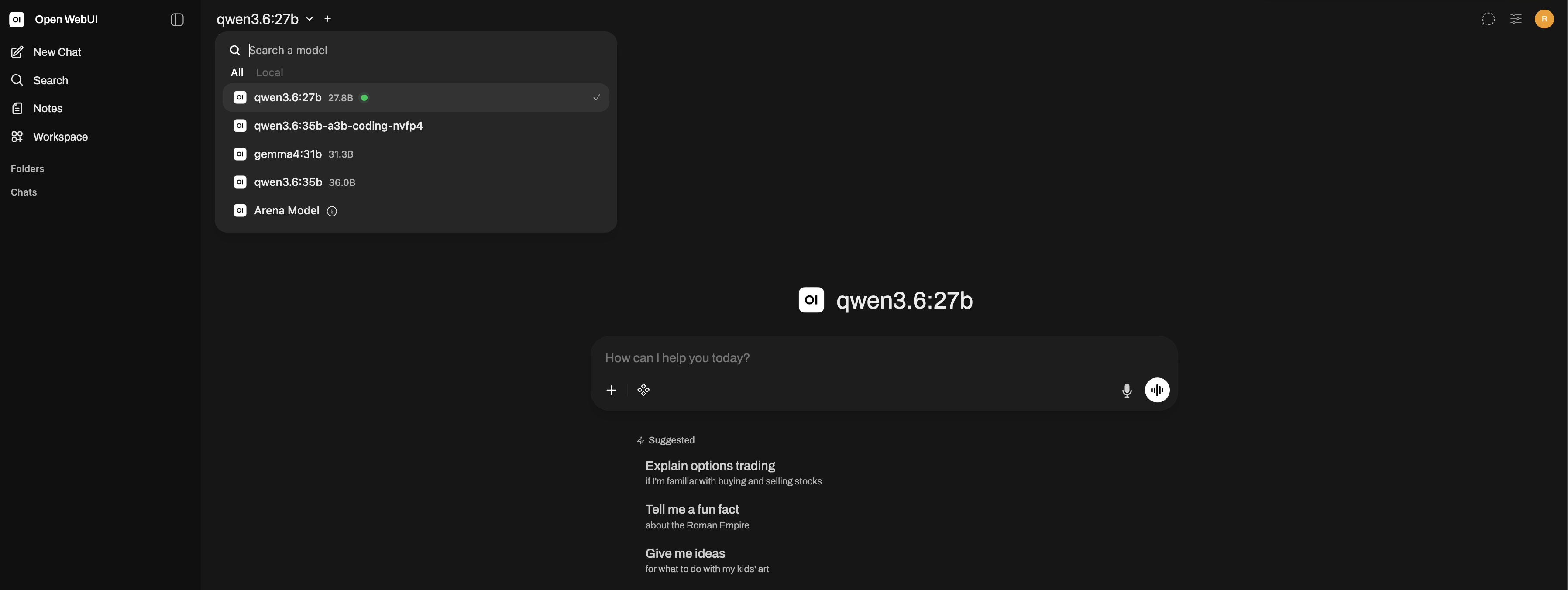
Interface Integration with Open-WebUI
Sure, you can run a model in a terminal for a five-minute test, but that’s a terrible way to actually work. Open-WebUI fixes this by giving you a ChatGPT-style interface that talks to the Ollama API.
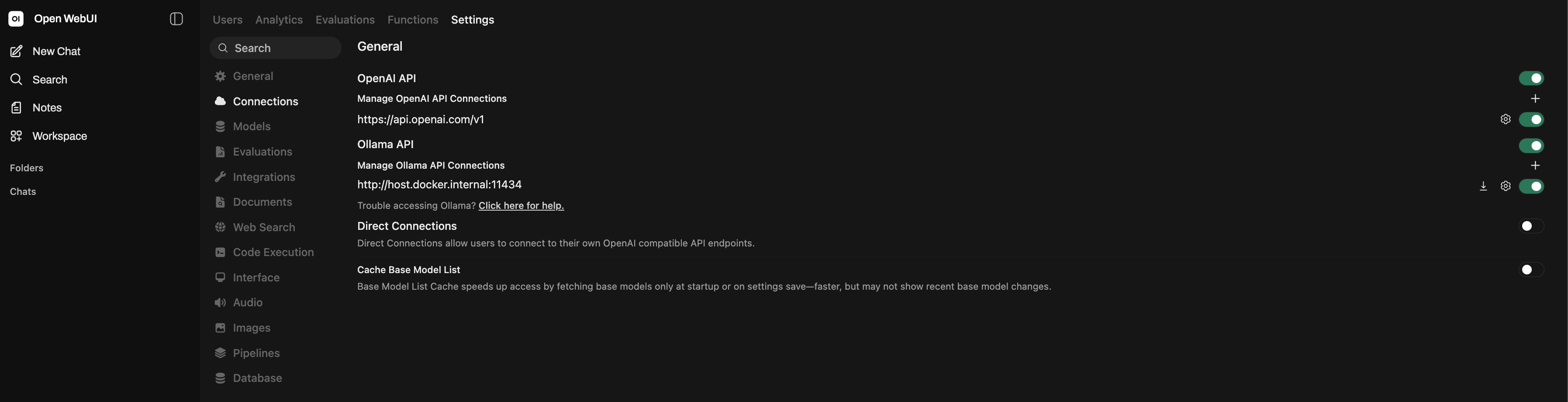
Now you can swap models, save histories, and organize prompts without touching a single command line. It turns a science project into a tool you can actually use.
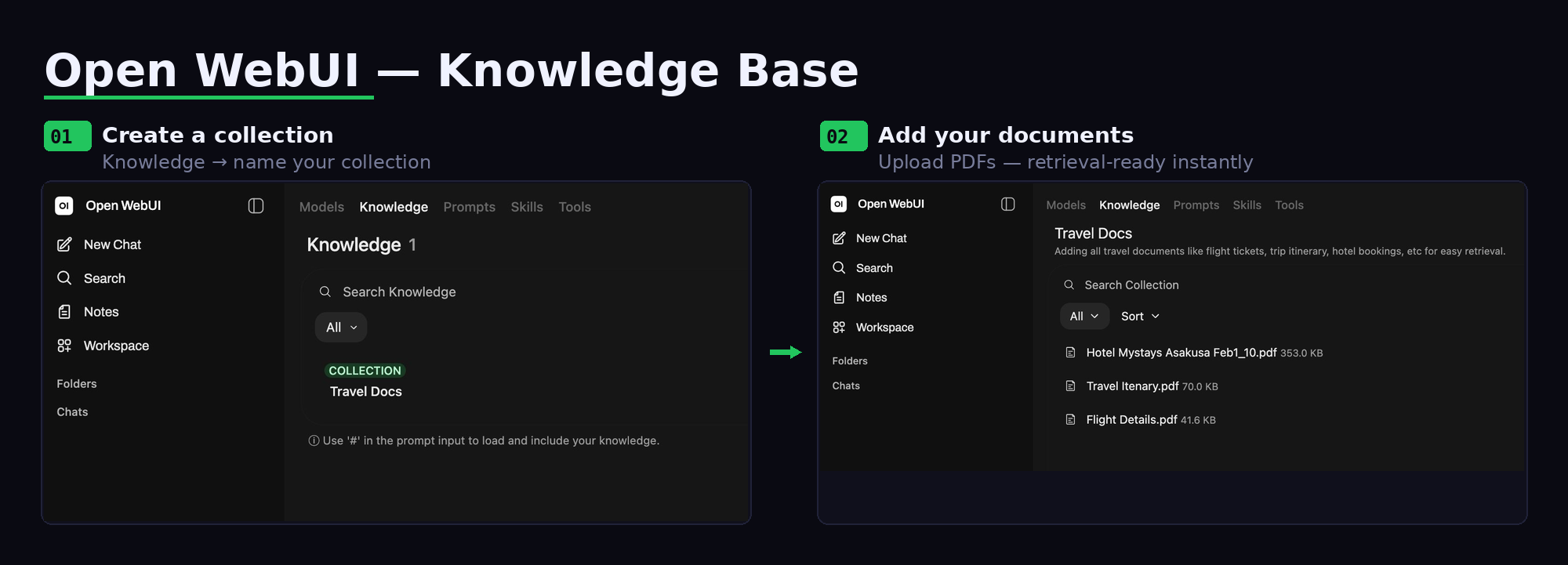
Implementing Local RAG (Retrieval Augmented Generation)
A local LLM only knows what it was trained on. If you want it to know anything about your specific project or company data, you need RAG.
RAG works by ripping your local documents apart, turning them into vector embeddings, and dumping them into a local database. When you ask a question, the system grabs the relevant chunks and feeds them into the prompt as context. It’s the only way to stop the model from hallucinating facts about your business.
I once asked a model to help debug a QNN API call. Without context about our internal codebase, it confidently generated a function signature that looked exactly right, correct namespace, plausible argument types, but referenced a method that had been renamed two versions back. Would have cost me thirty minutes of debugging if I hadn’t already known the codebase well enough to catch it on read. RAG doesn’t fully solve hallucination, but it removes the category of lies that come from missing context.
Economic Analysis: API Costs vs. Local Inference
Most developers seriously underestimate their “API burn.” The per-token cost feels negligible until you start running jobs that make hundreds of calls a day. That’s when the math gets uncomfortable.
Monthly API Burn Rates
Hit a high-end model like GPT-4 or Claude 200 times a day, and you’re looking at $300 to $500 a month. It’s a black hole. These costs are opaque, and one complex project with massive prompts can spike your bill before you’ve even noticed.
I hit $340 in one week running a refactor job across a large TypeScript codebase. Large prompts, full file contents pasted as context, burn tokens fast. The job wasn’t even finished. I’d been running it in a loop to handle edge cases and watching the cost accumulate in the dashboard until I got tired of watching and cancelled it.
Total Cost of Ownership (TCO)
TCO is a simple trade-off: one-time hardware costs versus the recurring API tax.
If you drop $5,000 on a workstation and your burn is $400 a month, you break even in 12.5 months. But if you’re doing high-volume work, like generating synthetic data or refactoring a massive codebase, that window shrinks to 3 months.
Productivity Gains (No Rate Limits)
Then there’s the rate limit headache. Cloud providers throttle your requests based on some arbitrary tier, which kills your momentum.
Running locally kills that anxiety. You have unlimited queries. Want to script a loop to chew through 10,000 documents? Do it. You won’t hit a 429 “Too Many Requests” error or wake up to a nightmare bill. That kind of experimentation is simply too expensive to run per-token.
Frequently asked questions
Precision is everything here. A 4-bit quantized 7B model needs roughly 3.5 GB to 5 GB. FP16 requires 14 GB. Whatever your target, pad by 20% for KV cache and overhead, or you will hit an OOM error immediately.
Sure, but you are stuck with 7B or 8B parameter models. Use Ollama and stick to 4-bit quantization. On a machine with 8GB of RAM and integrated graphics, I tried running a 13B INT4 model through Ollama out of curiosity. The math said it might fit. The system froze within two minutes. Not a clean OOM kill, a full freeze that required a hard reboot. The model hadn't even finished loading.
FP16 uses 2 bytes per parameter and is the gold standard for quality, but it eats VRAM for breakfast. 4-bit drops that to about 0.5 bytes per parameter. You take a minor hit to reasoning quality, but the memory savings are massive and usually worth it.
Do the math. If you are spending $300 to $500 a month on API credits, buy the hardware. You will typically break even in 3 to 6 months. After that, compute is essentially free.
Privacy and latency. In healthcare or finance, keeping data on-prem is often a legal requirement, not a preference. On latency: I built a document review pipeline that made six sequential API calls per document, 800ms each. Chained together, that was nearly five seconds of wall-clock time, most of it network round-trips. The same pipeline on a local 70B model at Q4_K_M ran each step in under 200ms.
Ollama if you want something running in ten minutes. llama.cpp if you need custom build flags, specific CUDA versions, or direct integration with your own inference server. Most developers start with Ollama and never need to go deeper. I use both: Ollama for day-to-day work, llama.cpp when I'm benchmarking or need a quantization format Ollama doesn't expose cleanly.
Yes, and in 2026 it is one of the better options. Apple Silicon uses unified memory shared between CPU and GPU, so a Mac Studio M4 Max with 48GB can run a 30B model at Q4_K_M without any VRAM ceiling issues. Ollama supports Apple Silicon natively using Metal. The M4 Ultra at 96GB or 192GB is competitive with datacenter hardware for single-user inference workloads.
On discrete GPU hardware, Q4_K_M. It uses roughly 4.5 effective bits: the model stays coherent and it fits in consumer VRAM. On unified memory (Mac Studio, AMD AI Max+), you have headroom for Q6_K or Q8_0, which preserves noticeably more quality at longer context. The sweet spot is hardware-dependent.
Sources
- How Much GPU VRAM Do You Need to Run Large Language Models?. Learn Code Camp. VRAM formulas, precision tiers, KV cache estimates.
- VRAM Calculator for Local LLMs. CraftRigs. VRAM formula with 1.2x overhead derivation; Q4_K_M effective bits.
- Running Local LLMs in 2026: The Complete Hardware and Setup Guide. Kunal Ganglani. API cost benchmarks ($300–500/month), break-even analysis.
- Local LLM Inference Server: What It Really Costs to Build One for Your Business. Be Structured. Hardware cost ranges for 7B ($3,500–$6,000) and 70B ($80,000–$120,000) setups.
- How to Run Ollama Locally: Complete Setup Guide (2026). AI Tool Discovery. Ollama prerequisites, model sizes (Llama 3.3 8B = 4.9 GB).