
Ollama, llama.cpp, and LM Studio are the three dominant tools for running large language models on your own hardware, each targeting a different point on the ease-of-use versus control spectrum. They aren’t competing products. They’re different layers of the same stack.
I’ve spent years plugging third-party tools into production inference pipelines. The lesson is always the same: “ease of use” is just a trade-off for control. Local LLMs make this tension worse. Most people treat the choice between these three as a “which is better” debate. Stop doing that. It’s the wrong question.
Back when I started running larger models locally, I wasted a whole weekend trying to squeeze a 70B model onto a single RTX 3090. I’d set ctx_size to 32768 on a model that was already pushing my VRAM limits. The model was swapping context into system RAM. Running ollama ps showed the memory counter climbing past 28GB on a 24GB card. Dropping ctx_size to 4096 fixed it: throughput went from 2 tok/s to 18 tok/s. The tool was never the problem. I had misread my own setup.
The tool you use to load the model determines exactly how much of your hardware’s power you actually get.
Key takeaways: All three tools run the same underlying llama.cpp inference engine, so raw tokens-per-second is nearly identical across them. Ollama is the right choice for developers who need an API, Docker support, and automation. LM Studio is the right choice if you want to browse and test models without touching a terminal. Direct llama.cpp gives you full control over every inference parameter and beats both wrappers on raw performance when you know what flags to set. All three use the GGUF format, so model files are mostly portable, though Ollama’s blob storage makes exporting harder than importing.
| llama.cpp | Ollama | LM Studio | |
|---|---|---|---|
| Interface | CLI flags | CLI + HTTP API | Desktop GUI |
| Setup | Compile from source | 1 command | ~5 min install |
| GPU detection | Manual (-ngl flag) | Automatic | Automatic |
| Model storage | Direct GGUF | Blob store | Direct GGUF |
| OpenAI-compatible API | Needs llama-server | Built-in | Local server mode |
| Docker support | Manual | Official image | No |
| Best for | Power users, researchers | Developers, automation | Hobbyists, non-engineers |
The Architecture: Engine vs. Wrapper
Part of my day job involves working with llama.cpp at the integration layer for on-device inference. Not the Python wrapper. The actual C++ library. So I’m not describing these tools from the outside.
Everything starts with llama.cpp. It’s the bedrock. Georgi Gerganov wrote it in C++ to bring LLMs to consumer hardware through quantization and smart memory management. It’s the “engine” in the most literal sense. If you’re running a local LLM, llama.cpp is under the hood, even if you’ve never opened a terminal.
Ollama wraps that engine in a daemon, a CLI, and an HTTP API. It’s a background service. You aren’t talking to the model directly when you run a command. You’re talking to a manager that handles the llama.cpp process for you. It’s opinionated by design. Automatic GPU detection and loading are great, right up until you need a specific parameter that Ollama decided to hide. I once needed a non-default repeat_penalty and top_k for a generation task in an inference project. The Ollama Modelfile didn’t expose it cleanly. I fell back to running llama.cpp directly with the explicit flags.
Then there’s LM Studio. It’s a polished desktop app built on Electron. It uses the same llama.cpp backend, but the focus here is the UI. It makes browsing Hugging Face feel like an app store.
Think of it like cars. llama.cpp is a kit car: you build it yourself, tune every bolt, and control everything. You’ll get grease on your clothes. Ollama is a Tesla: smooth, opinionated, just works, as long as you’re fine with how Tesla thinks a car should behave. LM Studio is a BMW: a polished cockpit with a luxury feel, but you pay for that polish with a heavier resource footprint.
The User Persona Decision Matrix
Stop looking for the “best” tool. It doesn’t exist. The right choice depends entirely on what you’re actually trying to do. I break this down into three personas.
The Developer (Ollama)
Building an app? Integrating an LLM into a CI/CD pipeline? Setting up a home server to serve AI to other devices? Use Ollama. Developers don’t want to click through a GUI to start a session. They want a single command and a stable API.
I run Ollama on a home server and hit it from my laptop. I swapped a cloud-based API call for a local Ollama endpoint in an inference pipeline I was building. No code changes, just a different base_url. Round-trip latency dropped from around 800ms to under 60ms. The switch took three minutes.
It gives you an OpenAI-compatible API right out of the box, which means you can swap a cloud GPT-4 call for a local Llama 3 call without rewriting half your codebase:
from openai import OpenAI

client = OpenAI(base_url="http://localhost:11434/v1", api_key="ollama")

response = client.chat.completions.create(
    model="llama3.2",
    messages=[{"role": "user", "content": "Explain quantization in one sentence."}]
)
print(response.choices[0].message.content)
Automation is the whole point here. The ability to script the model pull and throw the runner into a Docker container makes this the only real choice for backend integration.
The Hobbyist (LM Studio)
Most people just want to play with new open-weights models without wasting three hours reading documentation on quantization formats. That’s where LM Studio wins.
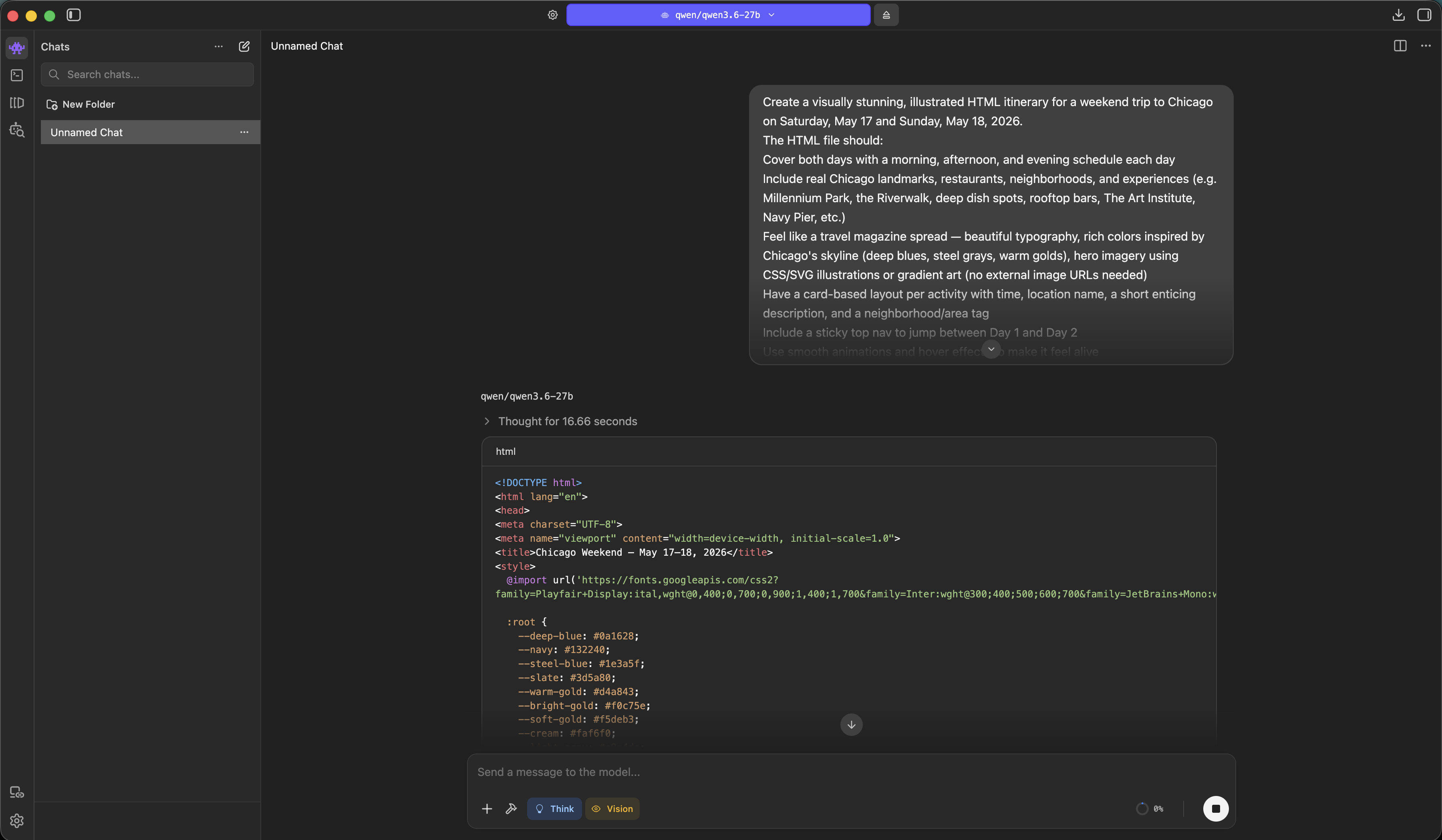
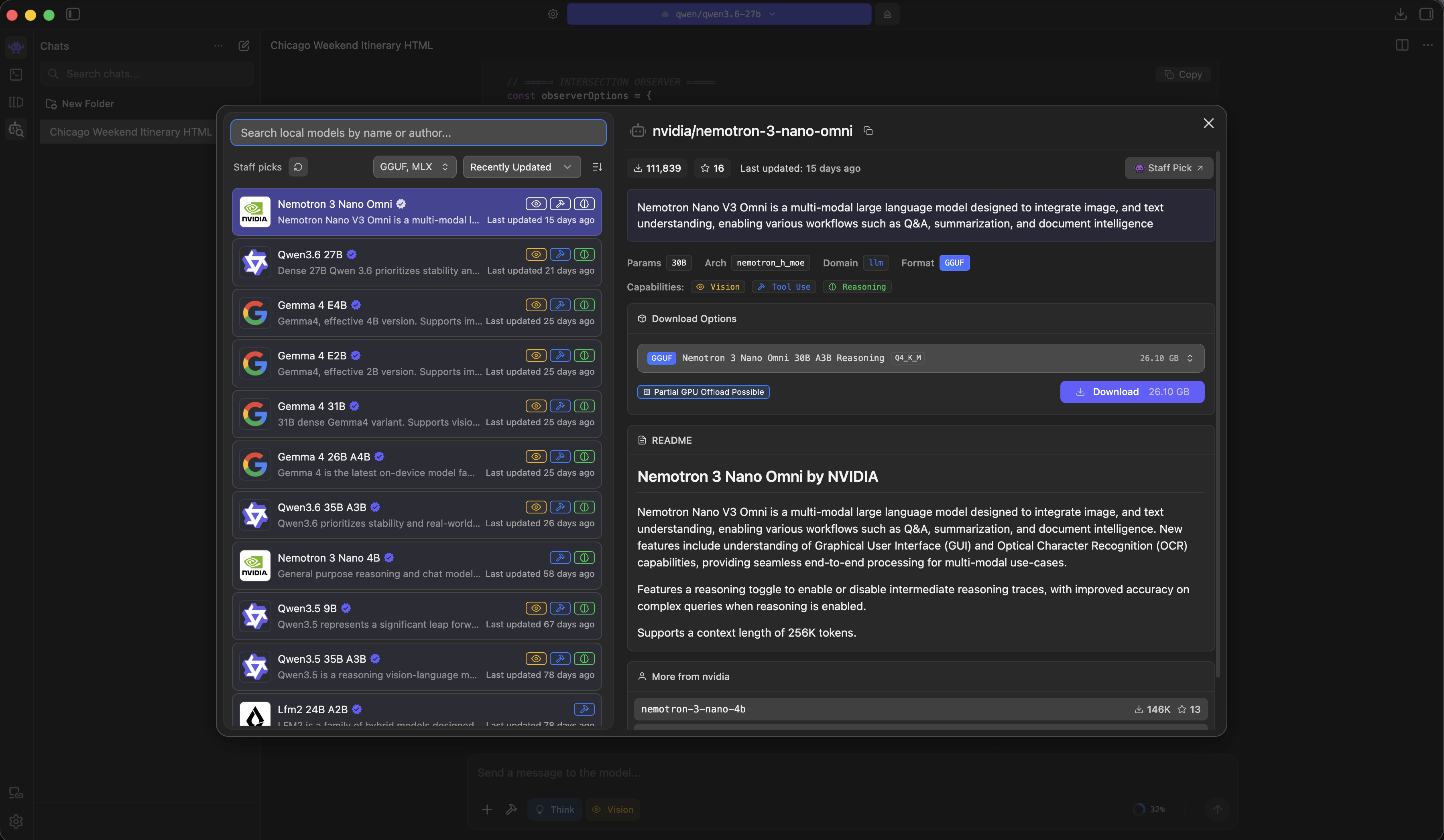
The integrated Hugging Face browser is the killer feature. Stop hunting for GGUF files in a sea of repositories. Instead, search for a model and see exactly which versions fit in your VRAM. If you’re a writer, a researcher, or just a non-engineer who wants a clean chat interface, the terminal is a nuisance you shouldn’t have to deal with.
The Power User (llama.cpp)
Then there are the people who care if they’re getting 12.5 or 13.2 tokens per second. These are the folks who want the latest kernel optimizations and the ability to tweak n_predict and repeat_penalty flags with surgical precision.
Using llama.cpp directly cuts out the middleman. You don’t have a daemon managing the process and you don’t have an Electron shell eating your RAM. You’re hitting the bare-metal engine. Use this if you’re a researcher or deploying to embedded systems where every megabyte of overhead is a liability.
Installation and Ease of Use Trade-offs
It’s a simple trade: speed versus control.
Want it working now? Use Ollama. On macOS or Linux, it’s a one-command install. Pull a model, and you’re chatting in the terminal in under two minutes. It handles the library like Docker, so you don’t have to care where the files live or how they’re named.
LM Studio takes a few more minutes since it’s a standard desktop app. But it wins on discovery. Ollama expects you to already know the model name, whereas LM Studio lets you browse. You can filter by size and quantization, which stops you from making the rookie mistake of trying to jam a 70B model into 8GB of VRAM. I learned this the hard way: I once tried to run a 70B Q4 model while forgetting about context cache overhead. The OS froze mid-generation. LM Studio’s VRAM estimator in the model browser would have caught that before I ever hit run.
Then there’s llama.cpp. Depending on your gear, you’ll probably need to compile it from source to get the CUDA or Metal optimizations right. It isn’t “hard,” but you need to be comfortable with build tools. Getting CUDA support working on Linux means passing -DGGML_CUDA=ON to cmake and making sure your CUDA_TOOLKIT_ROOT_DIR is set correctly. I’ve watched that trip people who’ve been writing C++ for years. The interface is raw: you’re passing flags to a binary. There’s no model browser here, just GGUF files you’ve manually hunted down from Hugging Face.
Resource Consumption and Performance
Ignore the marketing fluff. You’ll see benchmarks claiming one tool is “faster” than another, but since these tools use the same underlying engine, actual inference speed (tokens per second) is basically identical. The real fight is over overhead.
There is a real, tested 5x idle memory gap between LM Studio and Ollama: Ollama runs around 100MB of system RAM at idle, LM Studio around 500MB, just sitting there with nothing loaded. That gap comes from Electron. If you’ve ever used Chrome, you already know what Electron does to RAM. Running LM Studio alongside a heavy compile job is a reminder: 500MB of baseline overhead is real pressure on a memory-constrained machine. Ollama is a Go-based daemon that stays quiet in the background.
The engine is the only thing that matters for VRAM. Benchmarks using 4-bit Q4_K_XL quantization on everything from Qwen3 8B to Mistral Large 123B show the same result: model size and context window dictate your VRAM needs. A 70B model eats VRAM regardless of whether you use Ollama or llama.cpp. You need at least 24GB just to fit the weights before accounting for the KV cache. An RTX 3090 or RTX 4090 gets you there; the newer RTX 5090 with 96GB of VRAM handles the largest open-weights models without breaking a sweat.
Automatic GPU detection is a detail people usually miss. Ollama and LM Studio handle this well: they find your CUDA cores or Apple Silicon Unified Memory and set the offload layers for you. With llama.cpp, you’re on your own. You have to manually set the GPU offload layers with the -ngl flag. I’ve made this mistake. Forgot -ngl 35 on a 13B model, watched it run on CPU at 0.8 tok/s for two minutes before catching it. Add the flag: 45 tok/s. Get that flag wrong and you’ll spend ten minutes wondering why your GPU-optimized model is outputting one word every few seconds.
API Compatibility and Integration
Forget the GUI. If you’re actually building workflows, the API is the only thing that matters.
Both Ollama and LM Studio expose OpenAI-compatible endpoints. That’s the industry standard for a reason. It lets you plug in a frontend like Open WebUI and point it at either runner, giving you a professional chat interface without sending your data to a third party.
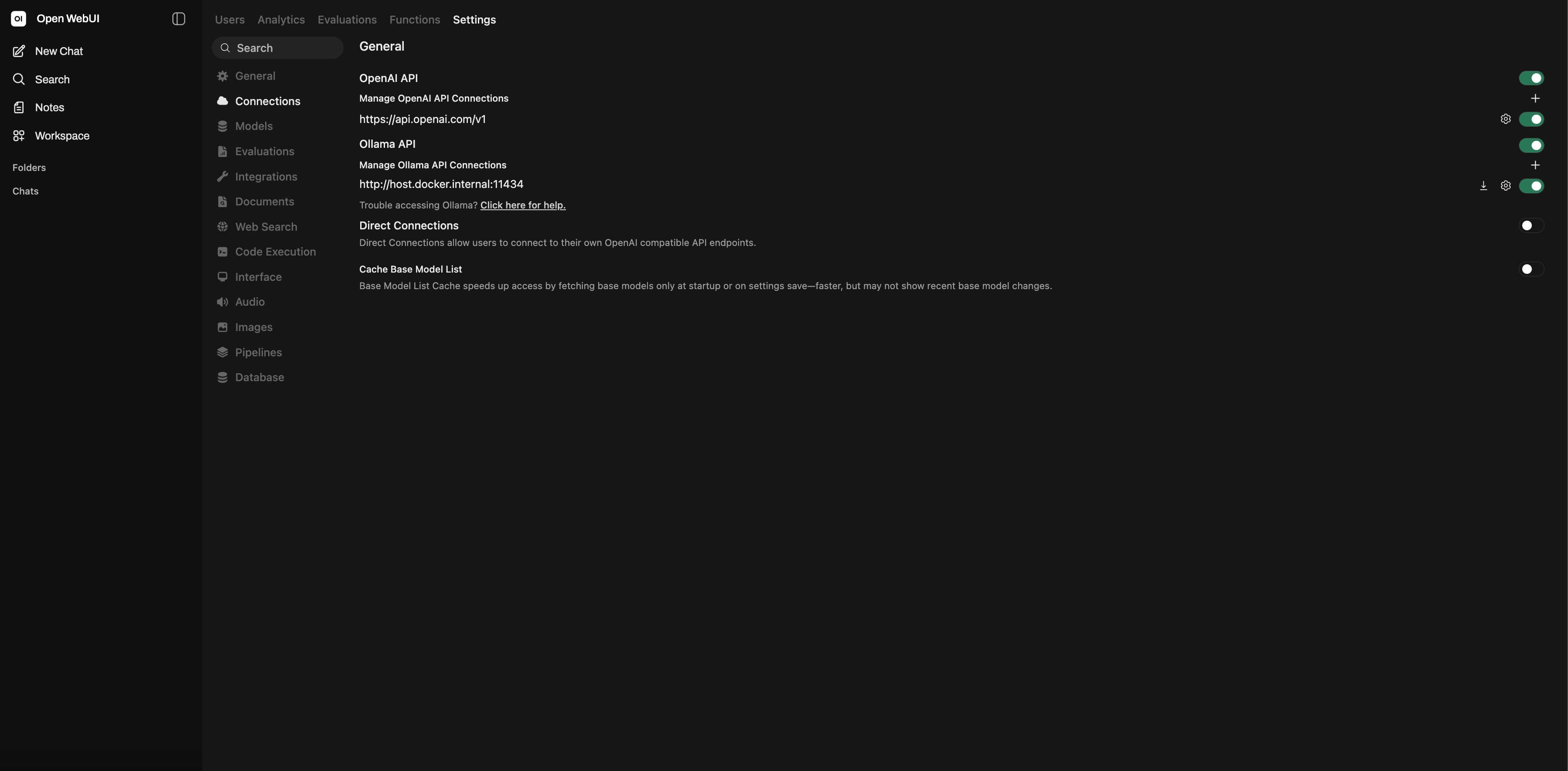
Here’s where the two diverge. Ollama is a server tool. It runs as a systemd service, has a solid Docker image, and handles remote access out of the box. I have Ollama running on a home server and hit it from my laptop over the local network. Same API, same client code, no GUI required.
LM Studio is a desktop app. It has a “Local Server” mode, and the newer LM Link feature lets you connect to remote instances over an encrypted Tailscale tunnel, which is genuinely useful. But it isn’t designed as headless server infrastructure. Don’t try to deploy it to a remote Linux box via SSH and expect it to behave like a production service. It’s great for tinkering. It isn’t for building systems.
Model Portability and Migration
GGUF is the real hero here. Since all three tools use it, your model files work in any of them. There is one caveat about Ollama’s storage format.
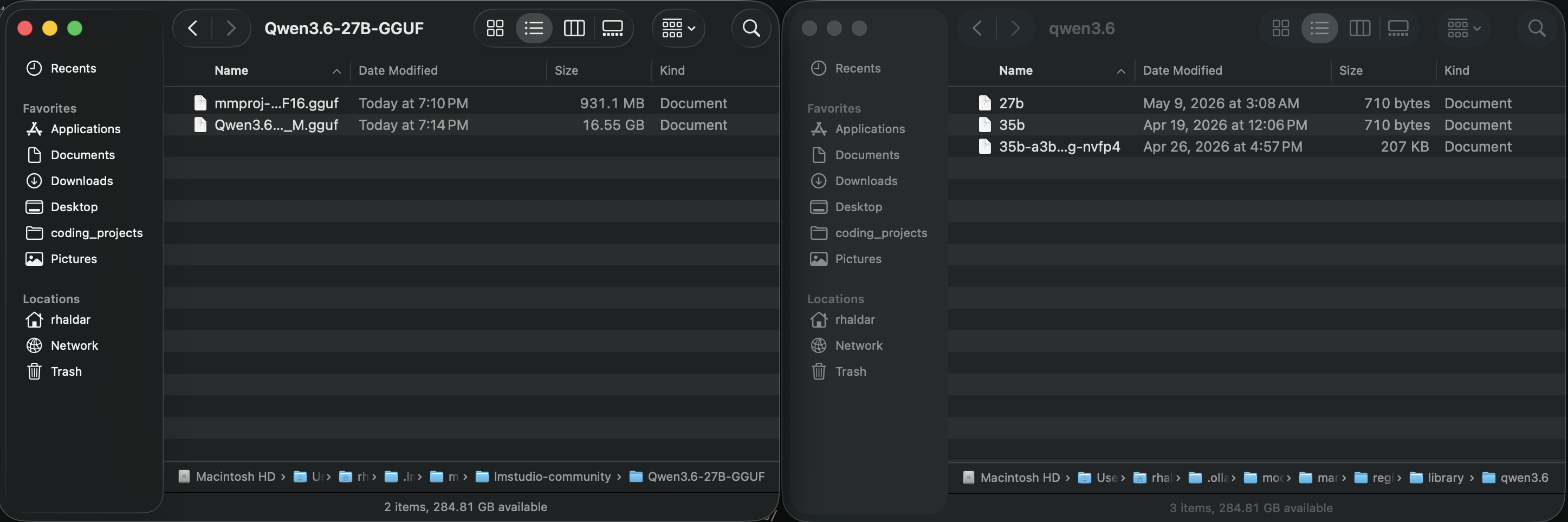
LM Studio keeps GGUF files exactly as you’d expect: one file per model in ~/.lmstudio/models, accessible directly from Finder or Explorer. You can copy a GGUF from Hugging Face, drop it in that folder, and it shows up immediately. llama.cpp works the same way. Just point it at the file path.
Ollama is different. It uses a content-addressed blob store at ~/.ollama/models/blobs/ and stores tiny manifest files in ~/.ollama/models/manifests/. The 16GB weight file doesn’t live somewhere obvious. It’s hashed and split across blobs. To bring a custom GGUF into Ollama, you create a Modelfile and run ollama create. Going the other direction (Ollama to LM Studio) requires hunting through the blobs manually or using a third-party tool. The weights don’t change, but the storage layout makes “just copy the file” work only one way.
Cataloging is where they diverge. Ollama’s curated library (now over 4,500 models as of May 2026) is convenient, but it’s a walled garden. LM Studio lets you loose on the entire Hugging Face repository. When a new model drops at 3:00 AM on a Tuesday, you’ll have it in LM Studio long before someone packages it for an Ollama pull command.
This portability matters when you hit the VRAM ceiling. On an inference project I was working on, I needed to fit a 70B model onto a system with exactly 24GB of VRAM. I tested Q8, Q5_K_M, and Q4_K_M quantization across all three runners using the same GGUF file. Q4_K_M fit. Q5_K_M didn’t. The ability to move the same file across tools without reformatting saved hours of debugging.
Frequently asked questions
Raw token speed is basically the same since they use the same engine. llama.cpp wins only if you need compiler flags or kernel optimizations the Ollama wrapper hasn't exposed yet.
Yes. Download the models once and you're set. Nothing leaves your machine.
Yes, if your VRAM allows it. Ollama's default is to load up to three models concurrently (three times your GPU count). If VRAM runs out, it queues new requests and unloads idle models to make room. You can tune this with the `OLLAMA_MAX_LOADED_MODELS` environment variable.
Fine for internal tools or prototypes. For a public app with thousands of users, use a real inference server like vLLM or TGI. They're built for high-throughput batching.
llama.cpp is the engine. Ollama wraps it for developers with an API and CLI. LM Studio wraps it for everyone else with a GUI and model browser.
LM Studio is polished on macOS and handles Apple Silicon well. Ollama recently added an MLX backend in preview, which can match or beat the llama.cpp path on M-series chips. For maximum raw speed today, running MLX-LM directly is still the benchmark to beat.
All three are free. llama.cpp and Ollama are open-source under the MIT license. LM Studio is free for personal use; commercial use requires a license. None of them charge for API calls. The cost is your hardware.
Not built-in. Ollama is CLI and API only. If you want a GUI on top of Ollama, run Open WebUI (free, self-hosted) or any other OpenAI-compatible frontend and point it at `http://localhost:11434`.